Due to a ransomware attack, the wiki was reverted to a July 2022 version. . We apologize for the lack of a more recent valid backup.
...
We’ll be using the same physical topology for all exercises, so now is a good time to start Mininet. The network is a simple set of six switches where the outer switches interconnected by a mesh of four switches. The diagram below shows the topology.
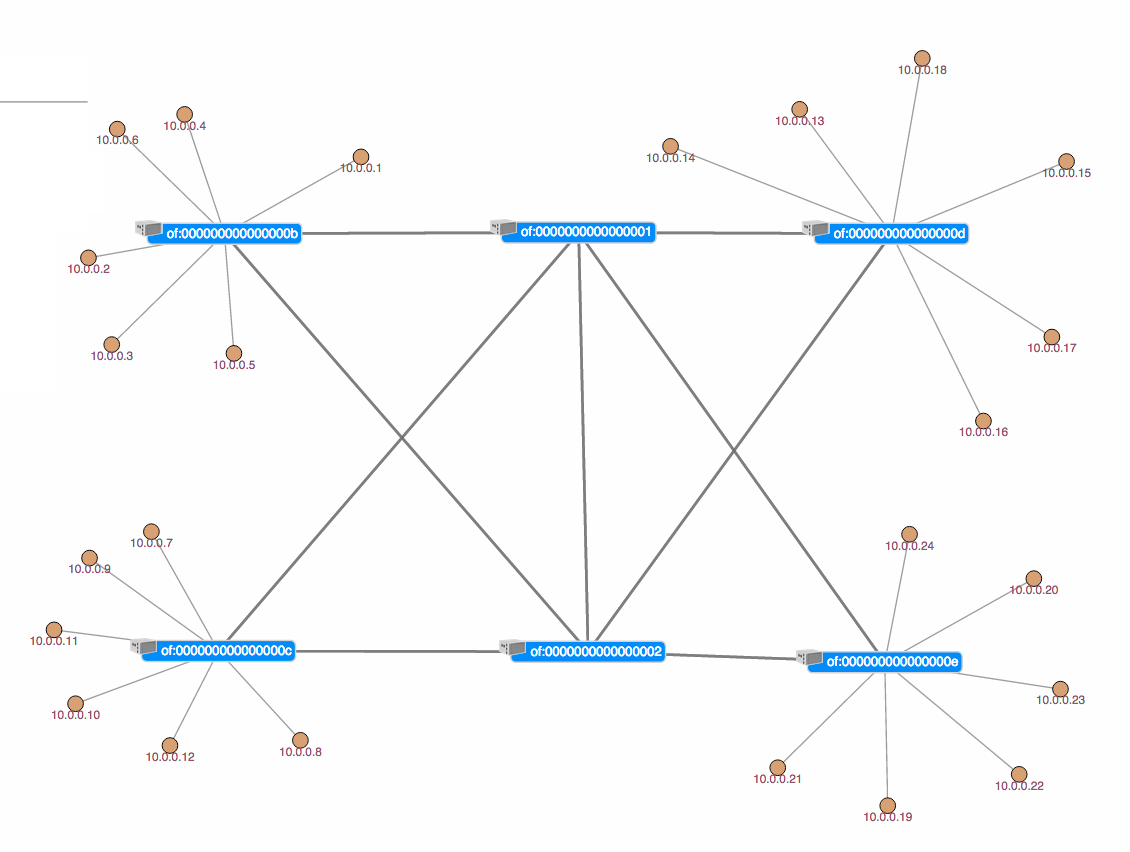
The outer switch each have six hosts attached to them. To start mininet with this topology, simply double click on the Mininet icon on your desktop.
...
or more information about an individual command adding --help to any command. Also most commands have autocompletion to help you find the parameters quickly and easily.
Devices command
An SDN Controller would be nothing without devices to control. Luckily, ONOS has a convenient command to list the device currently known in the system. Running
...
As shown above the tutorial ONOS has three applications loaded. One of them is the reactive forwarding applications, we will see the other two later in this tutorial.
Paths command
Given a network topology, ONOS computes all the shortest paths between any two nodes. This is especially useful for your applications to obtain path information for either flow installation or some other use. The paths command takes two arguments, both of them are devices. To make things easy for you ONOS provides CLI autocompletion by simply hitting the <TAB> key.
| Code Block |
|---|
onos> paths <TAB>
of:0000000000000001   of:0000000000000002   of:000000000000000b
of:000000000000000c of:000000000000000d of:000000000000000e |
ONOS lists device options for you, thereby making it easier to find the devices you would like. For example, the output of the command below shows two paths of equal costs.
| Code Block |
|---|
onos> paths of:000000000000000b of:000000000000000e
of:000000000000000b/1-of:0000000000000001/2==>of:0000000000000001/5-of:000000000000000e/1; cost=2.0
of:000000000000000b/2-of:0000000000000002/2==>of:0000000000000002/5-of:000000000000000e/2; cost=2.0 |
Intent Command
blah blah
Intent Reactive Forwarding
Another sample application in ONOS is the intent reactive forwarding application. Rather than pushing flow entries for each packet the it sees the intent reactive forwarding application provisions an intent. In particular, it provisions a host to host intent which is a simple connectivity intent which enables the connectivity between two hosts.
Out with the old, In with the new
First let's start by removing the old reactive forwarding application and load the intent reactive forwarding application.
| Code Block |
|---|
onos> feature:uninstall onos-app-fwd
onos> feature:install onos-app-ifwd |
NB: Notice the different bundle names: onos-app-fwd vs. onos-app-ifwd
Ok let's just make sure it is loaded correctly:
| Code Block |
|---|
onos> apps
id=0, name=org.onlab.onos.net.intent
id=1, name=org.onlab.onos.fwd
id=2, name=org.onlab.onos.ifwd |
So we can see that the intent forwarding application is correctly loaded.
Intentionally React
Alright so let's forward some traffic.
| Code Block |
|---|
mininet> h21 ping h31
PING 10.0.0.13 (10.0.0.13) 56(84) bytes of data.
64 bytes from 10.0.0.13: icmp_seq=1 ttl=64 time=25.7 ms
64 bytes from 10.0.0.13: icmp_seq=2 ttl=64 time=1.73 ms
64 bytes from 10.0.0.13: icmp_seq=3 ttl=64 time=0.191 ms
64 bytes from 10.0.0.13: icmp_seq=4 ttl=64 time=0.079 ms
^C
--- 10.0.0.13 ping statistics ---
4 packets transmitted, 4 received, 0% packet loss, time 3005ms
rtt min/avg/max/mdev = 0.079/6.926/25.700/10.859 ms |
So by using the flows command you can list the flows (by running the flows command) that the intent installed. So how is this different than the other application? Well the end result is the same but the process by which is was obtained it radically different. The intent reactive forwarding application has installed an intent between h21 and h31, as you can see by running the intents command:
| Code Block |
|---|
 onos> intents -i
id=0xffffffffe2a484dd, state=INSTALLED, type=HostToHostIntent, appId=org.onlab.onos.ifwd
    constraints=[LinkTypeConstraint{inclusive=false, types=[OPTICAL]}]
installable=[PathIntent{id=0xffffffffc68cba73, appId=DefaultApplicationId{id=2, name=org.onlab.onos.ifwd}, selector=DefaultTrafficSelector{criteria=[ETH_SRC{mac=00:00:00:00:00:0D}, ETH_DST{mac=00:00:00:00:00:07}]}, treatment=DefaultTrafficTreatment{instructions=[]}, constraints=[LinkTypeConstraint{inclusive=false, types=[OPTICAL]}], path=DefaultPath{src=ConnectPoint{elementId=00:00:00:00:00:0D/-1, portNumber=0}, dst=ConnectPoint{elementId=00:00:00:00:00:07/-1, portNumber=0}, type=INDIRECT, state=ACTIVE, durable=false}}, PathIntent{id=0xffffffffde7767b7, appId=DefaultApplicationId{id=2, name=org.onlab.onos.ifwd}, selector=DefaultTrafficSelector{criteria=[ETH_SRC{mac=00:00:00:00:00:07}, ETH_DST{mac=00:00:00:00:00:0D}]}, treatment=DefaultTrafficTreatment{instructions=[]}, constraints=[LinkTypeConstraint{inclusive=false, types=[OPTICAL]}], path=DefaultPath{src=ConnectPoint{elementId=00:00:00:00:00:07/-1, portNumber=0}, dst=ConnectPoint{elementId=00:00:00:00:00:0D/-1, portNumber=0}, type=INDIRECT, state=ACTIVE, durable=false}}] |
So the intent forwarding app has pushed the intent you see above as evidenced by the appId field. The intent is a host to host intent which details the path along which the flows have been installed.