Due to a ransomware attack, the wiki was reverted to a July 2022 version. . We apologize for the lack of a more recent valid backup.
...
This archetype has laid the base application code down, in a directory named meowster-sample. Next we will fold in UI components from an overlay archetype...
...
Note, the only difference between this command and the last is changing the "app" keyword to "ui"...
| Code Block |
|---|
$ onos-create-app ui org.meowster.app.sample meowster-sample |
...
(3) Modify the pom.xml file to mark the module as an ONOS appcorrectly label our ONOS application:
| Code Block |
|---|
$ cd meowster-custom $ vi pom.xml |
...
| Code Block |
|---|
<description>Meowster Sample ONOS App</description> |
(3b) In the <properties> section (just below the description), change the app name and origin:
...
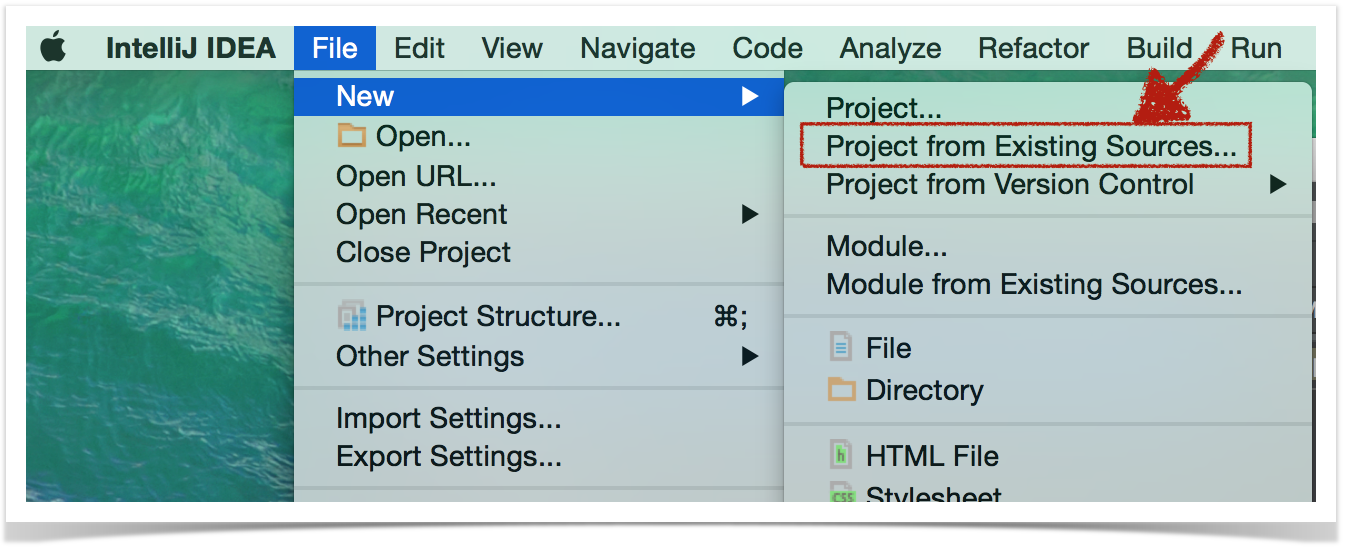
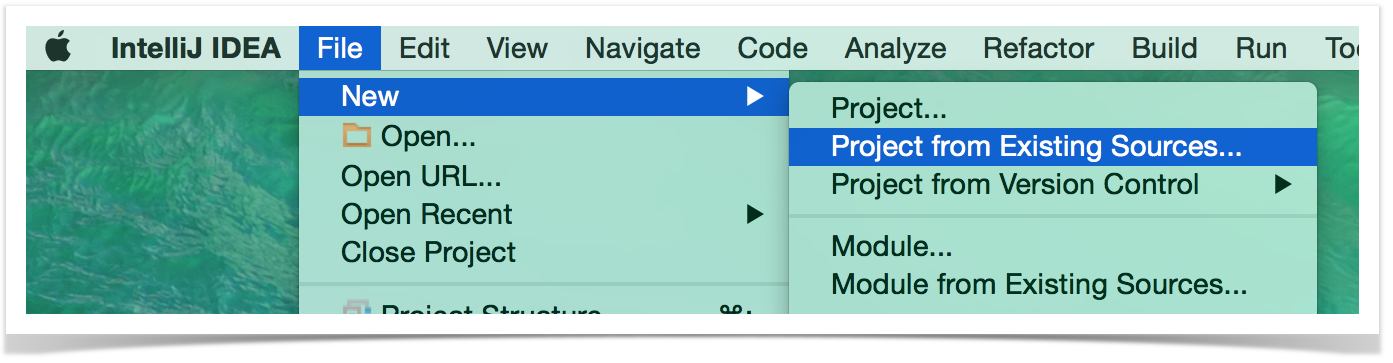
Start by selecting File --> New --> Project from Existing Sources...
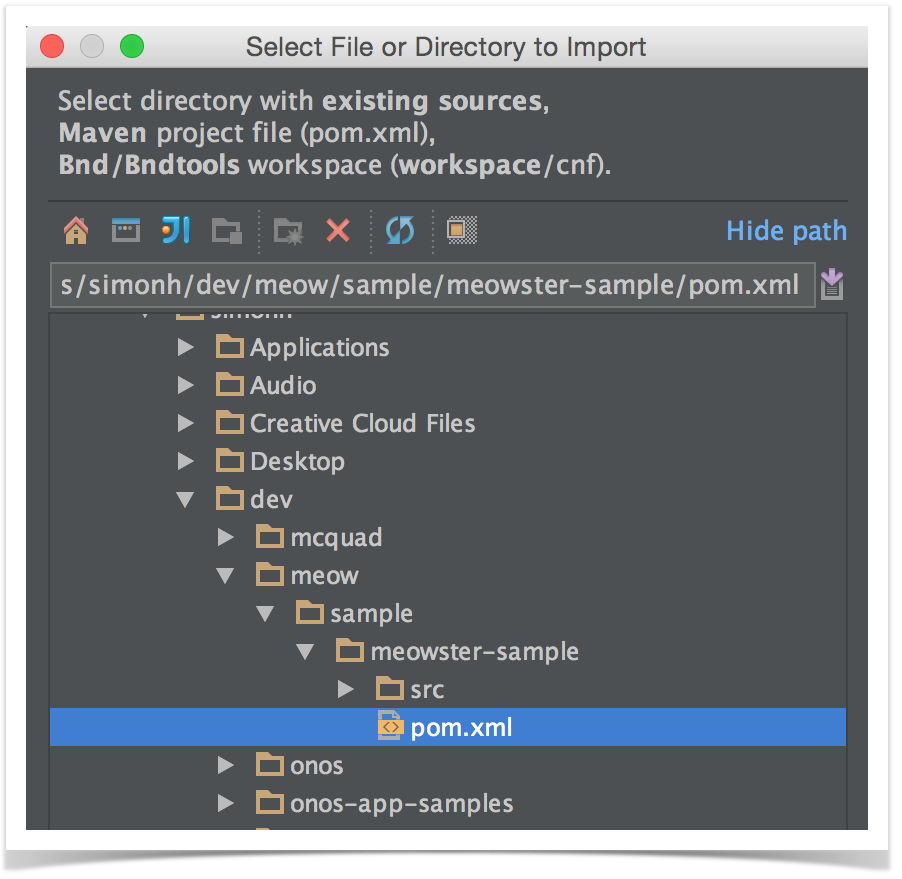
Then navigate to the top level pom.xml file and press OK:
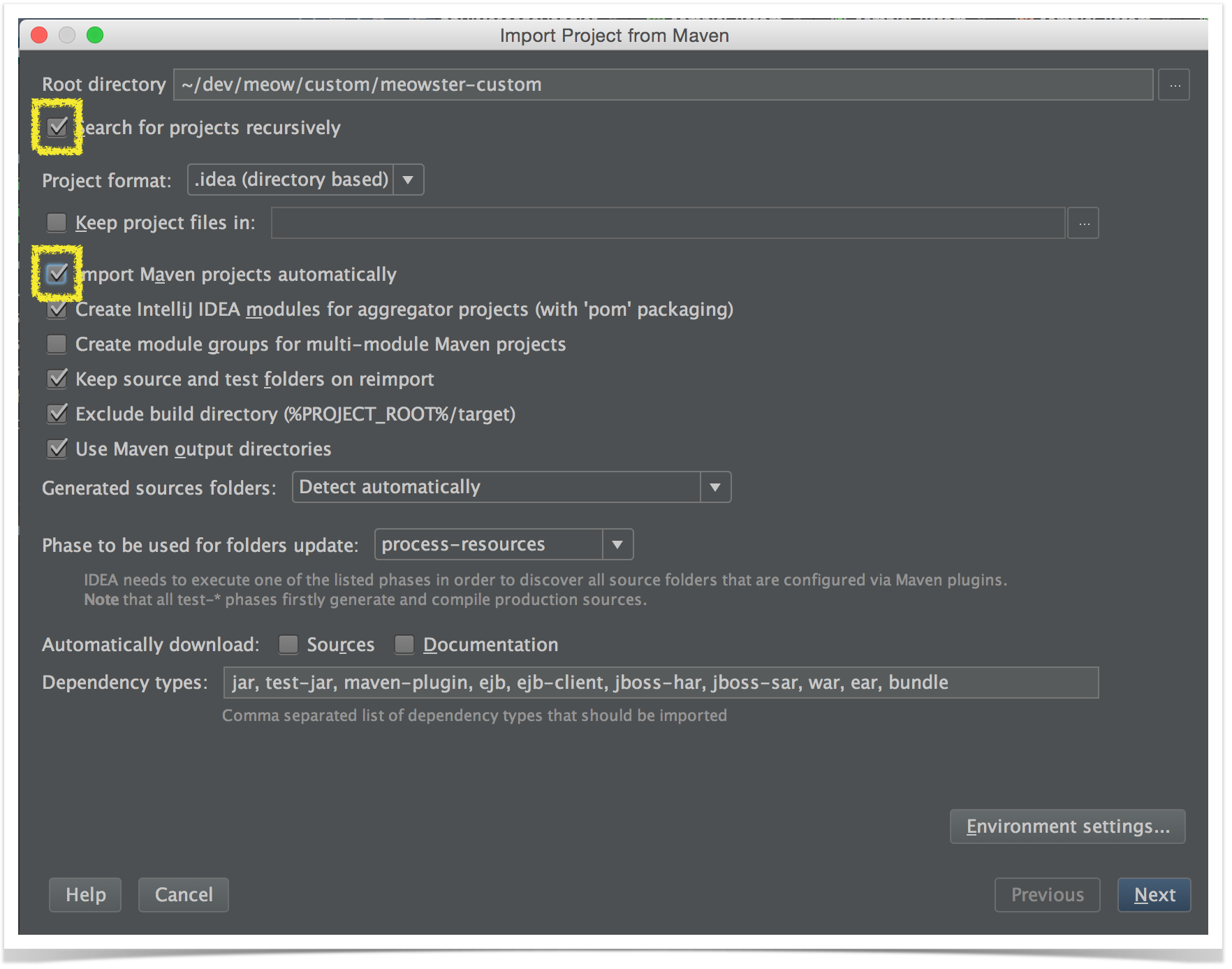
On the next screen, you might wish to checkmark the following two items:
...
...since they are not selected by default.
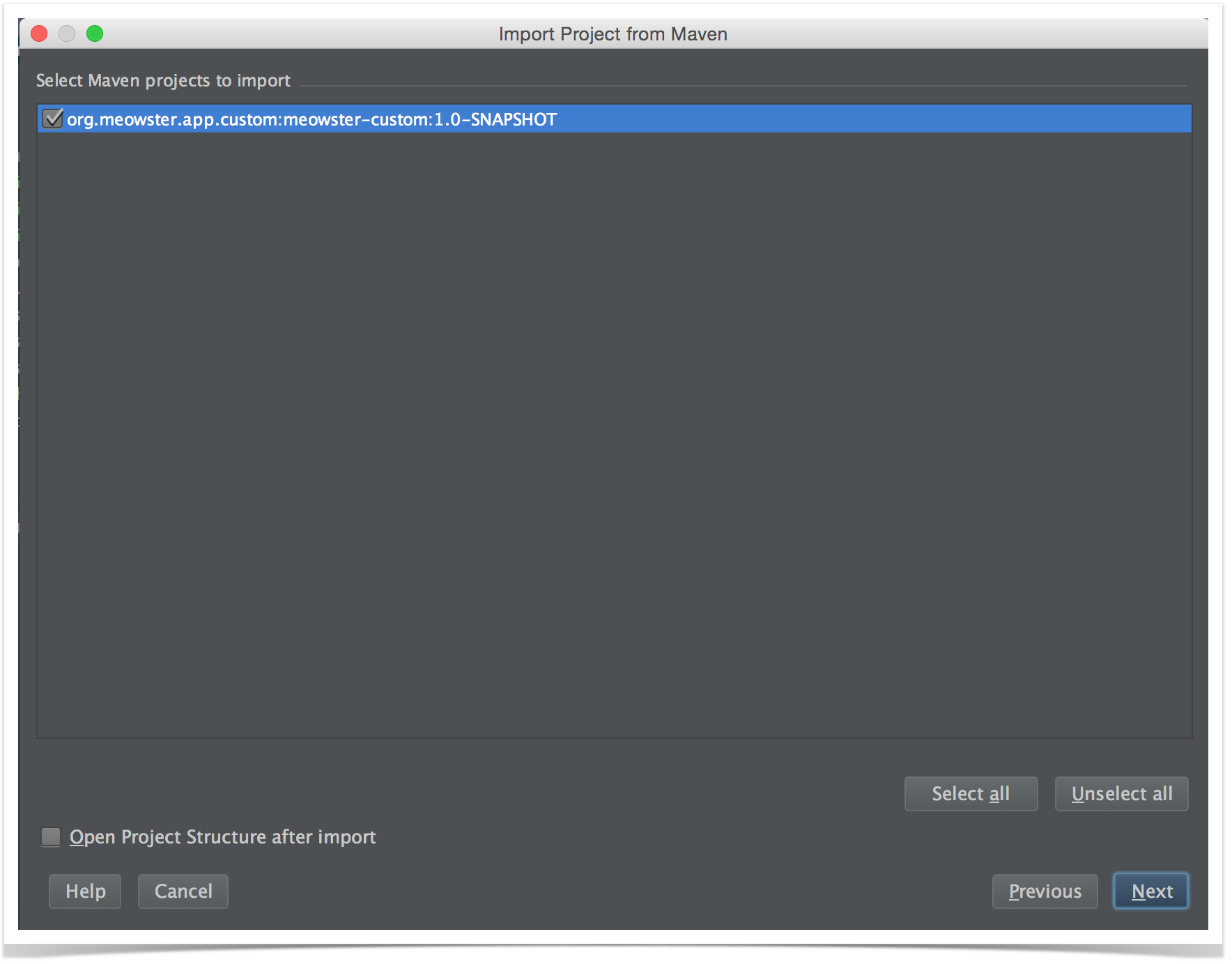
IntelliJ should find the 1.0-SNAPSHOT:
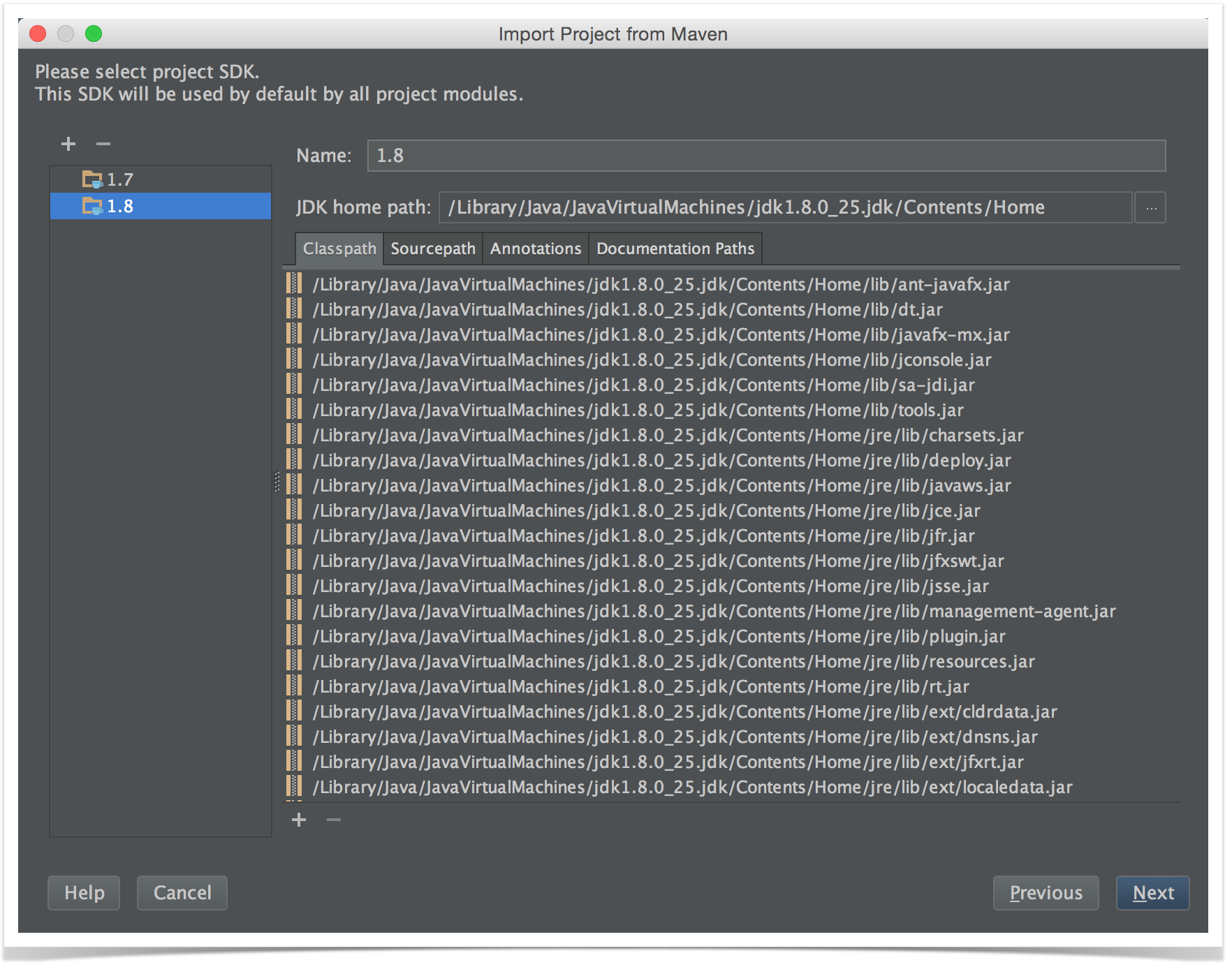
If presented with a choice of Java versions, select 1.8:
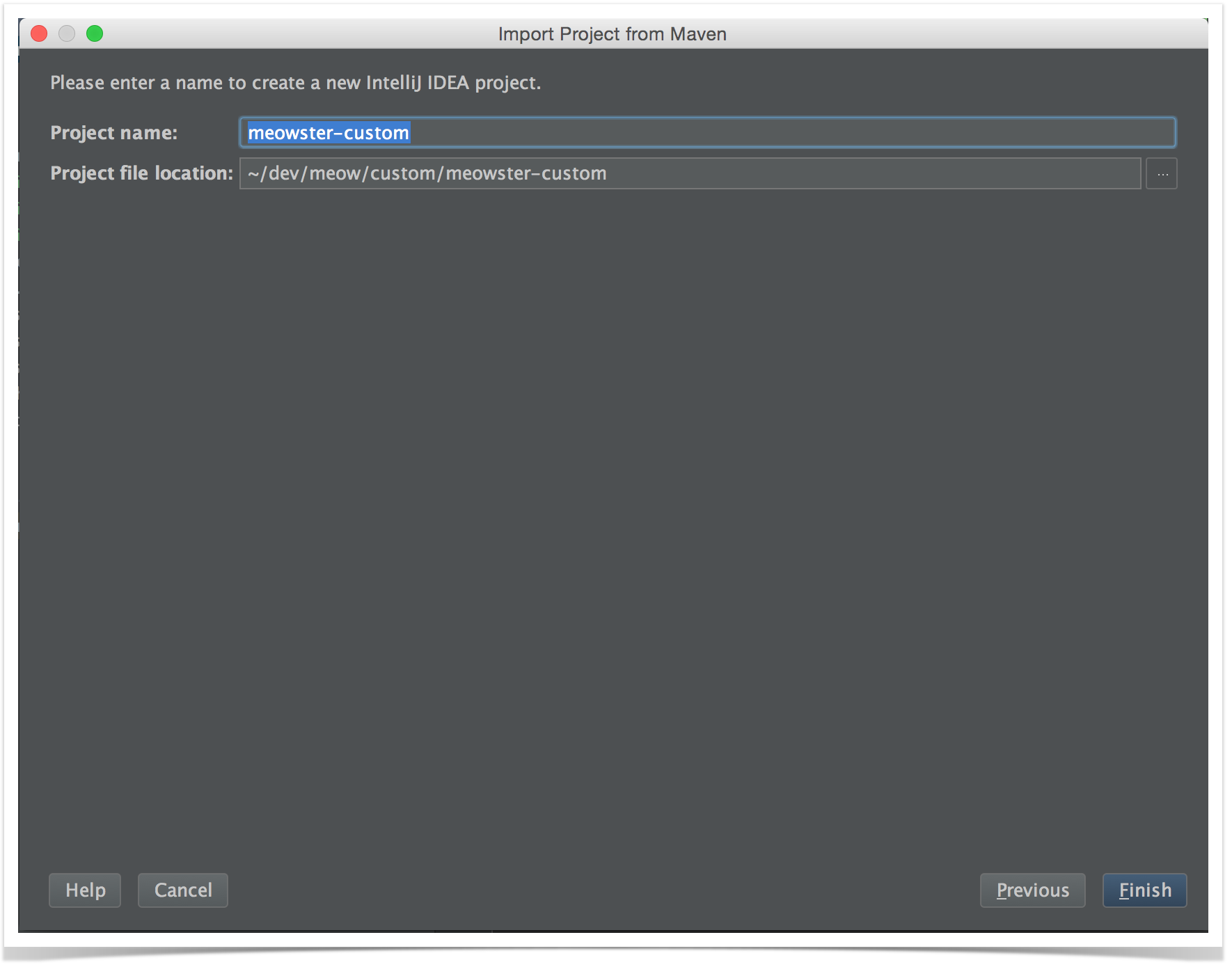
Finally, finish with the name of the project:
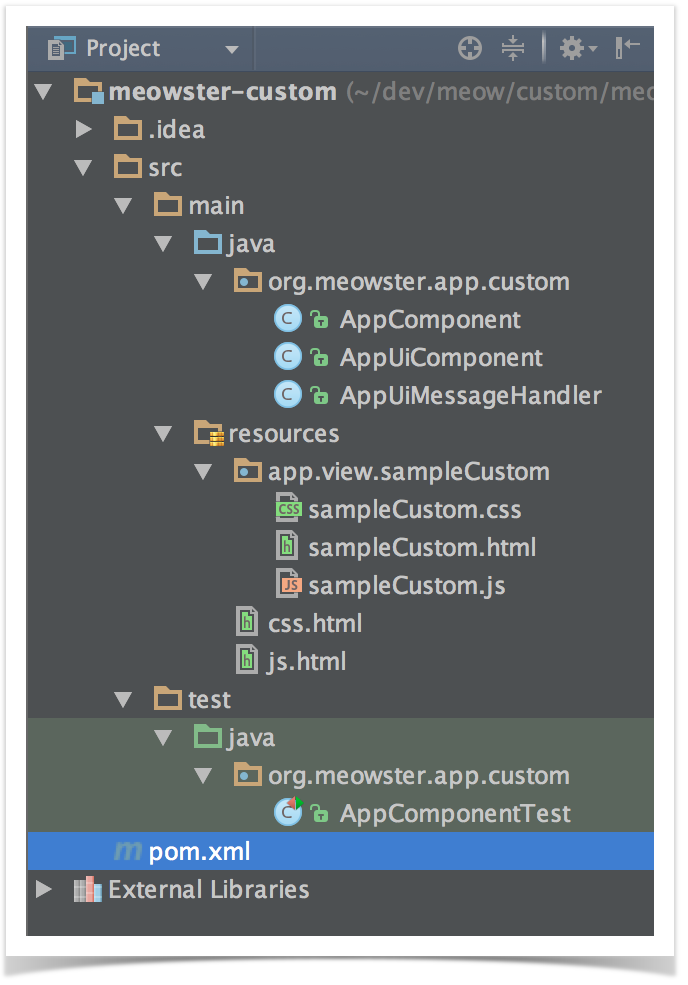
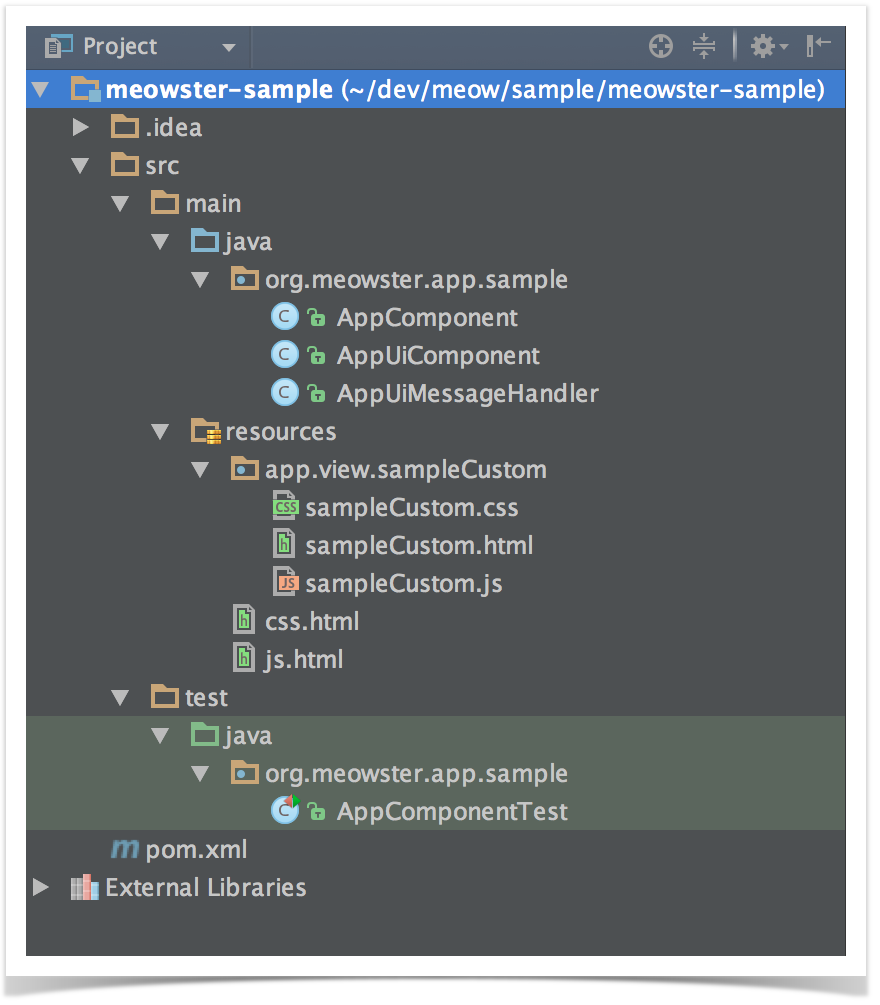
Once the project loads, you should finally see a directory structure like this:
Building and Installing the App
...