Due to a ransomware attack, the wiki was reverted to a July 2022 version. . We apologize for the lack of a more recent valid backup.
...
The high level architecture of the system is shown in the following figure.
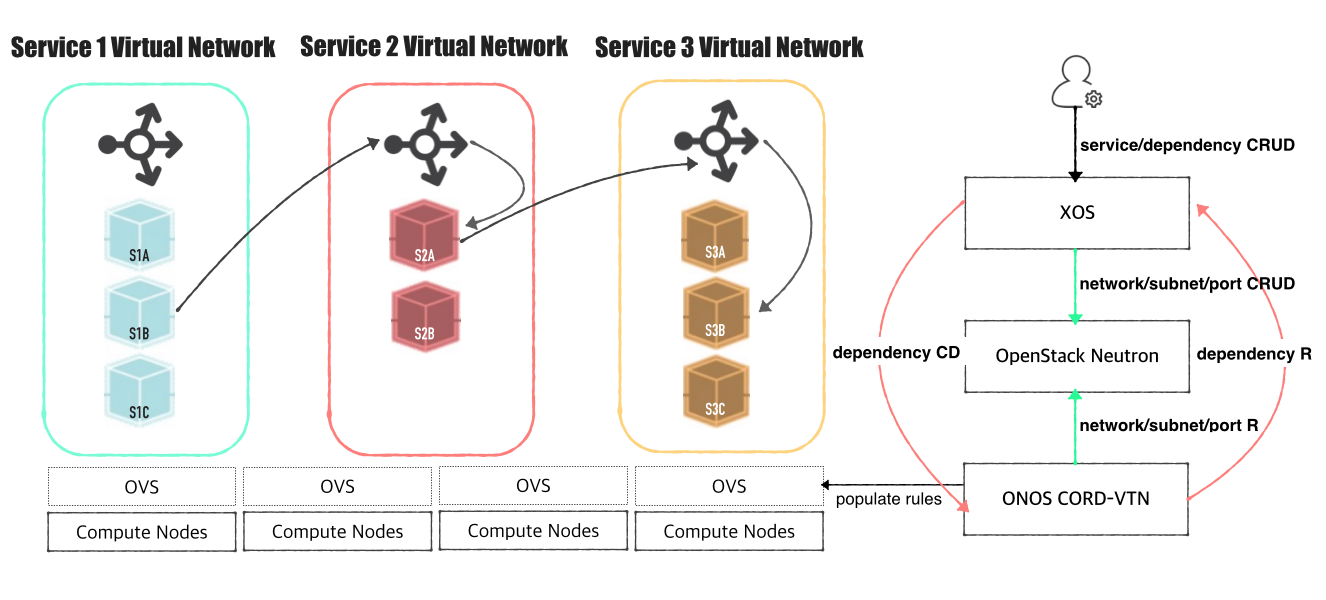


OpenStack Settings
...
- Controller cluster: at least one 4G RAM machine, runs DB, message queue server, OpenStack services including Nova, Neutron, Glance and Keystone.
- Compute nodes: at least one 2G RAM machine, runs nova-compute agent only. (Please don't run Neutron ovs-agent in compute node)
Controller Node
Install networking-onos(Neutron ML2 plugin for ONOS) first.
...
| Note |
|---|
If your compute node is a VM, try http://docs.openstack.org/developer/devstack/guides/devstack-with-nested-kvm.html this first or set |
Other Settings
1. Set Set OVSDB listening mode in your compute nodes. There are two ways.
...
| Code Block | ||
|---|---|---|
| ||
$ netstat -ntl Active Internet connections (only servers) Proto Recv-Q Send-Q Local Address Foreign Address State tcp 0 0 0.0.0.0:22 0.0.0.0:* LISTEN tcp 0 0 0.0.0.0:6640 0.0.0.0:* LISTEN tcp6 0 0 :::22 |
And check your OVSDB and the physical interface.
2. Check your OVSDB is OVSDB is clean.
| Code Block |
|---|
$ sudo ovs-vsctl show
cedbbc0a-f9a4-4d30-a3ff-ef9afa813efb
ovs_version: "2.3.0" |
3. Make sure that ONOS user(sdn by default) can SSH from ONOS instance to compute nodes with key.
ONOS Settings
Add the following configurations to your ONOS network-cfg.json. If you don't have fabric controller and vRouter setups, you may want to read "SSH to VM/Access Internet from VM" part also before creating network-cfg.json file. One assumption here is that all compute nodes have the same configurations for OVSDB port, SSH port, and account for SSH.
| Config Name | Descriptions |
|---|---|
| gatewayMac | MAC address of virtual network gateway |
| ovsdbPort | Port number for OVSDB connection (OVSDB uses 6640 by default) |
| sshPort | Port number for SSH connection |
| sshUser | SSH user name |
| sshKeyFile | Private key file for SSH |
| nodes | list of compute node information |
| nodes: hostname | hostname of the compute node, should be unique throughout the service |
| nodes: managementIp | IP address for management, should be accessible from head node |
| nodes: dataPlaneIp | IP address of the physical interface, this IP will be used for VXLAN tunneling |
| nodes: dataPlaneIntf | Name of physical interface used for tunneling |
| nodes: bridgeId | Device ID of the integration bridge (br-int) |
And make sure the physical interface does not have any IP address.
| Code Block |
|---|
$ sudo ip addr flush eth1
$ ip addr show eth1
3: eth1: <BROADCAST,MULTICAST,UP,LOWER_UP> mtu 1500 qdisc pfifo_fast state UP group default qlen 1000
link/ether 04:01:7c:f8:ee:02 brd ff:ff:ff:ff:ff:ff |
ONOS Settings
Add the following configurations to your ONOS network-cfg.json. If you don't have fabric controller and vRouter setups, you may want to read "SSH to VM/Access Internet from VM" part also before creating network-cfg.json file.
| Config Name | Descriptions |
|---|---|
| gatewayMac | MAC address of virtual network gateway |
| nodes | list of compute node information |
| nodes: hostname | hostname of the compute node, should be unique throughout the service |
| nodes: ovsdbIp | IP address to access OVSDB of compute node |
| nodes: ovsdbPort | Port number to access OVSDB (OVSDB uses 6640 by default) |
| nodes: bridgeId | Device ID of the integration bridge (br-int) |
| nodes: phyPortName | Name of physical interface used for tunneling |
| nodes: localIp | IP address of the physical interface, this IP will be used for VXLAN tunneling |
| Code Block | ||
|---|---|---|
| ||
{
    "apps" : {
| ||
| Code Block | ||
| ||
{ "apps" : { "org.onosproject.cordvtn" : { "cordvtn" : { "gatewayMac" : "00:00:00:00:00:01", "ovsdbPort"org.onosproject.cordvtn" : "6640",{ "sshPortcordvtn" : "22",{ "sshUsergatewayMac" : "username", "sshKeyFile" : "~/.ssh/id_rsa"00:00:00:00:00:01", "nodes" : [ { "hostname" : "compute-01", "managementIpovsdbIp" : "10.55.25.244", "dataPlaneIpovsdbPort" : "10.134.34.222/166640", "bridgeId" : "of:0000000000000001", "phyPortName" : "eth0", "dataPlaneIntf" : "eth1", "bridgeId "localIp" : "of:000000000000000110.134.34.222" }, { "hostname" : "compute-02", "managementIp"ovsdbIp" : "10.241.229.42", "ovsdbPort" : "6640", "bridgeId" : "10.241.229.42of:0000000000000002", "dataPlaneIpphyPortName" : "10.134.34.223/16eth0", "dataPlaneIntflocalIp" : "eth1", "bridgeId" : "of:0000000000000002" 10.134.34.223" } ] } }, "org.onosproject.openstackswitching" : { "openstackswitching" : { "do_not_push_flows" : "true", "neutron_server" : "http://10.243.139.46:9696/v2.0/", "keystone_server" : "http://10.243.139.46:5000/v2.0/", "user_name" : "admin", "password" : "passwd" } } } } |
...
| Code Block |
|---|
ONOS_APPS=drivers,drivers.ovsdb,openflow-base,lldpprovider,dhcp,cordvtn |
How To Test
...
Additional Manual Steps
Once OpenStack and ONOS with CORD VTN app start successfully, you should check the system is ready.do some additional steps before using the service.
1. Check your compute nodes are registered to CordVtn service and in init COMPLETE state.
| Code Block | ||||
|---|---|---|---|---|
| ||||
onos> cordvtn-nodes hostname=compute-01, mgmtIpovsdb=4510.55.25.244, dpIp:6640, br-int=of:0000000000000001, phyPort=eth0, localIp=10.134.34.222, init=COMPLETE hostname=compute-02, ovsdb=10.241.229.42:6640, br-int=of:0000000000000002, phyPort=eth0, localIp=10.134.34.222/16, br-int=of:0000000000000001, dpIntf=eth1, init=COMPLETE hostname=compute-02, mgmtIp=192.241.229.42, dpIp=10.134.34.223/16, br-int=of:0000000000000002, dpIntf=eth1, init=INCOMPLETE Total 2 nodes |
If the nodes listed in your network-cfgf.json do not show in the result, try to push network-cfg.json to ONOS with REST API.
| Code Block |
|---|
curl --user onos:rocks -X POST -H "Content-Type: application/json" http://onos-01:8181/onos/v1/network/configuration/ -d @network-cfg.json |
If all the nodes are listed but some of them are in "INCOMPLETE" state, check what is the problem with it and fix it.
Once you fix the problem, push the network-cfg.json again to trigger init for all nodes(it is no harm to init again with COMPLETE state nodes) or use "cordvtn-node-init" command.
| Code Block | ||||
|---|---|---|---|---|
| ||||
onos> cordvtn-node-check compute-02
Integration bridge created/connected : OK (br-int)
VXLAN interface created : OK
Data plane interface added : NO (eth0)
IP address set to br-int : NO (10.134.34.222/16) |
223, init=INCOMPLETE
Total 2 nodes |
If the nodes listed in your network-cfgf.json do not show in the result, try to push network-cfg.json to ONOS with REST API.
| Code Block |
|---|
curl --user onos:rocks -X POST -H "Content-Type: application/json" http://onos-01:8181/onos/v1/network/configuration/ -d @network-cfg.json |
If all the nodes are listed but some of them are in "INCOMPLETE" state, check what is the problem with it and fix it.
Once you fix the problem, push the network-cfg.json again to trigger init for all nodes(it is no harm to init again with COMPLETE state nodes) or use "cordvtn-node-init" command.
| Code Block | ||||
|---|---|---|---|---|
| ||||
onos> cordvtn-node-check compute-02
Integration bridge created/connected : OK (br-int)
VXLAN interface created : OK
Physical interface added : NO (eth0) |
2. Assign "localIP" in your network-cfg.json to "br-int" in your compute node.
This step has not been automated yet. You should do this step manually. Login to the compute nodes and assign local IP to the "br-int" bridge.
When you are done this, you should be able to ping between compute nodes with this local IPs.
| Code Block |
|---|
$ sudo ip addr add 10.134.34.223 dev br-int
$ sudo ip link set br-int up |
32. Make sure all virtual switches on compute nodes are added and available in ONOS.
| Code Block |
|---|
onos> devices id=of:0000000000000001, available=true, role=MASTER, type=SWITCH, mfr=Nicira, Inc., hw=Open vSwitch, sw=2.0.2, serial=None, managementAddress=compute.01.ip.addr, protocol=OF_13, channelId=compute.01.ip.addr:39031 id=of:0000000000000002, available=true, role=STANDBY, type=SWITCH, mfr=Nicira, Inc., hw=Open vSwitch, sw=2.0.2, serial=None, managementAddress=compute.02.ip.addr, protocol=OF_13, channelId=compute.02.ip.addr:44920 |
| Note |
|---|
During the initialization process, OVSDB devices can be shown, for example ovsdb:10.241.229.42, when you list devices in your ONOS. Once it's done with node initialization, these OVSDB devices are removed and only OpenFlow devices are shown. |
Now, it's ready.
How To Test
Without XOS
1. Test VMs in a same network can talk to each other
...