Due to a ransomware attack, the wiki was reverted to a July 2022 version. . We apologize for the lack of a more recent valid backup.
...
You can skip this part if you want to test CORD VTN features only and manually by creating network and VM via OpenStack CLI or dashboard.
1. Install Docker, httpie, and OpenStack CLIs
| Code Block |
|---|
root@xos # curl -s https://get.docker.io/ubuntu/ | sudo sh root@xos # apt-get install -y httpie root@xos # pip install --upgrade httpie root@xos # apt-get install -y python-keystoneclient python-novaclient python-glanceclient python-neutronclient |
2. Download XOS
| Code Block |
|---|
root@xos # git clone https://github.com/open-cloud/xos.git |
3. Set correct OpenStack information to xos/xos/configurations/cord-pod/admin-openrc.sh
| Code Block | ||||
|---|---|---|---|---|
| ||||
export OS_TENANT_NAME=admin export OS_USERNAME=admin export OS_PASSWORD=nova export OS_AUTH_URL=http://controller:35357/v2.0 |
4. Change "onos-cord" in xosin xos/xos/configurations/cord-pod/vtn-external.yaml to ONOS instance IP address
| Code Block | ||||
|---|---|---|---|---|
| ||||
    service_ONOS_VTN:
      type: tosca.nodes.ONOSService
      requirements:
      properties:
          kind: onos
          view_url: /admin/onos/onosservice/$id$/
          no_container: true
rest_hostname: 10.203.255.221 --> change this line |
5. Copy the SSH keys under xos/xos/configurations/cord-pod/
- id_rsa[.pub]: A keypair that will be used by the various services
- node_key: A private key that allows root login to the compute nodes
6. Run make
Second make command will re-configure ONOS and you have to post network-cfg.json again.
| Code Block |
|---|
root@xos ~/xos/xos/configurations/cord-pod # make root@xos ~/xos/xos/configurations/cord-pod # make vtn |
How To Test
Before you start
Once OpenStack and ONOS with CORD VTN app are started successfully, you'd better check the compute nodes are ready.
1. Check your ONOS instance IPs are correctly set to the management IP. It should be accessible from compute nodes.
| Code Block |
|---|
onos> nodes
id=10.203.255.221, address=159.203.255.221:9876, state=ACTIVE, updated=21h ago *
id=10.243.151.127, address=162.243.151.127:9876, state=ACTIVE, updated=21h ago
id=10.199.96.13, address=198.199.96.13:9876, state=ACTIVE, updated=21h ago |
Internet Access from VM (only for test)
If you want to access a VM through SSH or access the Internet from VM without fabric controller and vRouter, you need to do setup the followings in your compute node. Basically, this settings mimics fabric switch and vRouter inside a compute node, that is, "fabric" bridge corresponds to fabric switch and Linux routing tables corresponds to vRouter. You'll need at least two physical interface for this test setup.
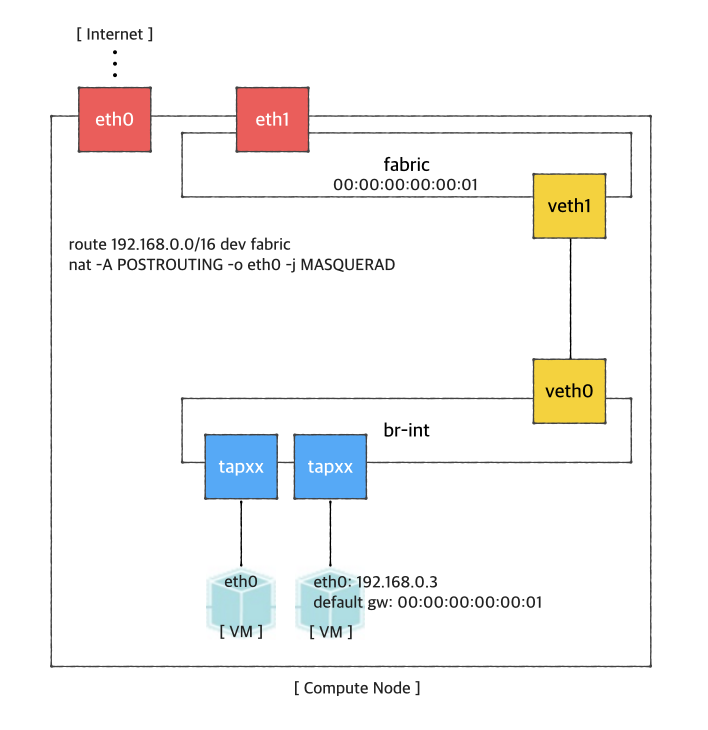
First, you'd create a bridge named "fabric" (it doesn't have to be fabric).
| Code Block | ||
|---|---|---|
| ||
$ sudo brctl addbr fabric |
Create a veth pair and set veth0 as a "dataPlaneIntf" in network-cfg.json
2. Check your compute nodes are registered to CordVtn service and in init COMPLETE state.
| Code Block | ||||
|---|---|---|---|---|
| ||||
onos> cordvtn-nodes
hostname=compute-01, hostMgmtIp=10.55.25.244/24, dpIp=10.134.34.222/16, br-int=of:0000000000000001, dpIntf=eth1, init=COMPLETE
hostname=compute-02, hostMgmtIp=10.241.229.42/24, dpIp=10.134.34.223/16, br-int=of:0000000000000002, dpIntf=eth1, init=INCOMPLETE
Total 2 nodes |
If the nodes listed in your network-cfgf.json do not show in the result, try to push network-cfg.json to ONOS with REST API.
| Code Block |
|---|
curl --user onos:rocks -X POST -H "Content-Type: application/json" http://onos-01:8181/onos/v1/network/configuration/ -d @network-cfg.json |
If all the nodes are listed but some of them are in "INCOMPLETE" state, check what is the problem with it and fix it.
Once you fix the problem, push the network-cfg.json again to trigger init for all nodes(it is no harm to init COMPLETE state nodes again) or use "cordvtn-node-init" command.
| Code Block | ||||
|---|---|---|---|---|
| ||||
onos> cordvtn-node-check compute-01
Integration bridge created/connected : OK (br-int)
VXLAN interface created : OK
Data plane interface added : OK (eth1)
IP flushed from eth1 : OK
Data plane IP added to br-int : NO (10.134.34.222/16)
Local management IP added to br-int : NO (172.27.0.1/24)

(fix the problem if there's any)

onos> cordvtn-node-init compute-01

onos> cordvtn-node-check compute-01
Integration bridge created/connected : OK (br-int)
VXLAN interface created : OK
Data plane interface added : OK (eth1)
IP flushed from eth1 : OK
Data plane IP added to br-int : OK (10.134.34.222/16)
Local management IP added to br-int : OK (172.27.0.1/24) |
3. Make sure all virtual switches on compute nodes are added and available in ONOS.
| Code Block |
|---|
onos> devices
id=of:0000000000000001, available=true, role=MASTER, type=SWITCH, mfr=Nicira, Inc., hw=Open vSwitch, sw=2.0.2, serial=None, managementAddress=compute.01.ip.addr, protocol=OF_13, channelId=compute.01.ip.addr:39031
id=of:0000000000000002, available=true, role=STANDBY, type=SWITCH, mfr=Nicira, Inc., hw=Open vSwitch, sw=2.0.2, serial=None, managementAddress=compute.02.ip.addr, protocol=OF_13, channelId=compute.02.ip.addr:44920 |
| Note |
|---|
During the initialization process, OVSDB devices can be shown, for example ovsdb:10.241.229.42, when you list devices in your ONOS. Once it's done with node initialization, these OVSDB devices are removed and only OpenFlow devices are shown. |
Now, it's ready.
Without XOS
You can test creating service networks and service chaining manually, that is, without XOS.
1. Test VMs in a same network can talk to each other
First, create a network through OpenStack Horizon or OpenStack CLI. Network name should include one of the following five network types.
...
$ ip link add veth0 type veth peer name veth1 |
Now, add veth1 and the actual physical interface, eth1 here in example, to the fabric bridge.
| Code Block | ||
|---|---|---|
| ||
$ sudo brctl addif fabric veth1
$ sudo brctl addif fabric eth1
$ sudo brctl show
bridge name bridge id       STP enabled interfaces
fabric      8000.000000000001   no      eth1
veth1 |
Set fabric bridge MAC address to the virtual gateway MAC address, which is "privateGatewayMac" in network-cfg.json.
| Code Block | ||
|---|---|---|
| ||
$ sudo ip link set address 00:00:00:00:00:01 dev fabric |
Now, add routes of your virtual network IP ranges and NAT rules.
| Code Block | ||
|---|---|---|
| ||
$ sudo route add -net 192.168.0.0/16 dev fabric
$ sudo netstat -rn
Kernel IP routing table
Destination     Gateway         Genmask         Flags   MSS Window  irtt Iface
0.0.0.0         45.55.0.1       0.0.0.0         UG        0 0          0 eth0
45.55.0.0       0.0.0.0         255.255.224.0   U         0 0          0 eth0
192.168.0.0     0.0.0.0         255.255.0.0     U         0 0          0 fabric

$ sudo iptables -A FORWARD -d 192.168.0.0/16 -j ACCEPT
$ sudo iptables -A FORWARD -s 192.168.0.0/16 -j ACCEPT
$ sudo iptables -t nat -A POSTROUTING -o eth0 -j MASQUERADE |
You should enable ip_forward, of course.
| Code Block | ||
|---|---|---|
| ||
$ sudo sysctl net.ipv4.ip_forward=1 |
It's ready. Make sure all interfaces are activated and able to ping to the other compute nodes with "hostManagementIp".
| Code Block | ||
|---|---|---|
| ||
$ sudo ip link set br-int up
$ sudo ip link set veth0 up
$ sudo ip link set veth1 up
$ sudo ip link set fabric up |
How To Test: Basic Service Composition
Before you start
Once OpenStack and ONOS with CORD VTN app are started successfully, you'd better check the compute nodes are ready.
1. Check your ONOS instance IPs are correctly set to the management IP. It should be accessible from compute nodes.
| Code Block |
|---|
onos> nodes
id=10.203.255.221, address=159.203.255.221:9876, state=ACTIVE, updated=21h ago *
id=10.243.151.127, address=162.243.151.127:9876, state=ACTIVE, updated=21h ago
id=10.199.96.13, address=198.199.96.13:9876, state=ACTIVE, updated=21h ago |
2. Check your compute nodes are registered to CordVtn service and in init COMPLETE state.
| Code Block | ||||
|---|---|---|---|---|
| ||||
onos> cordvtn-nodes
hostname=compute-01, hostMgmtIp=10.55.25.244/24, dpIp=10.134.34.222/16, br-int=of:0000000000000001, dpIntf=eth1, init=COMPLETE
hostname=compute-02, hostMgmtIp=10.241.229.42/24, dpIp=10.134.34.223/16, br-int=of:0000000000000002, dpIntf=eth1, init=INCOMPLETE
Total 2 nodes |
If the nodes listed in your network-cfgf.json do not show in the result, try to push network-cfg.json to ONOS with REST API.
| Code Block |
|---|
curl --user onos:rocks -X POST |
...
| Code Block | ||||
|---|---|---|---|---|
| ||||
$ neutron net-create net-A-private
$ neutron subnet-create net-A-private 10.0.0.0/24 |
To access VM through SSH, you may want to create SSH key first and pass the --key-name when you create a VM, or the following script as a --user-data, which sets password of "ubuntu" account to "ubuntu" so that you can login to VM through console. Anyway, creating and accessing a VM is the same with usual OpenStack usage.
| Code Block |
|---|
#cloud-config
password: ubuntu
chpasswd: { expire: False }
ssh_pwauth: True |
Now create VMs with the network you created. (don't forget to add --key-name or --user-data if you want to login to VM)
| Code Block | ||||
|---|---|---|---|---|
| ||||
$ nova boot --image f04ed5f1-3784-4f80-aee0-6bf83912c4d0 --flavor 1 --nic net-id=aaaf70a4-f2b2-488e-bffe-63654f7b8a82 net-A-vm-01 |
You can access VM through Horizon Web Console, virsh console with some tricks(https://github.com/hyunsun/documentations/wiki/Access-OpenStack-VM-through-virsh-console) or if you setup "Local Management Network" part, you can SSH to VM from a compute node where the VM is running.
Now, test VMs can ping to each other.
2. Test VMs in a different network cannot talk to each other
Create another network, for example net-B-private, and create another VM with the network. Now, test the VM cannot ping to the network net-A-private.
3. Test service chaining
Enable ip_forward in your VMs.
| Code Block | ||
|---|---|---|
| ||
$ sudo sysctl net.ipv4.ip_forward=1 |
Create service dependency with the following REST API.
| Code Block | ||
|---|---|---|
| ||
$ curl -X POST -u onos:rocks -H "Content-Type:application/json" http://[onos_ip]:8181/onos/cordvtn/service-dependency/[net-A-UUID]/[net-B-UUID]/b |
Now, ping from net-A-private VM to gateway IP address of net-B. There will not be a reply but if you tcpdump in net-B-private VMs, you can see one of the VMs in net-B-private gets the packets from net-A-private VM. To remove the service dependency, send another REST call with DELETE.
| Code Block |
|---|
$ curl -X DELETE -u onos:rocks -H "Content-Type: application/json" http://[onos_ip]-01:8181/onos/v1/cordvtnnetwork/service-dependency/[net-A-UUID]/[net-B-UUID] |
Check the following video how service chaining works (service chaining demo starts from 42:00)
| Widget Connector | ||
|---|---|---|
|
With XOS
[TODO]
Local Management Network
If you need to SSH to VM directly from compute node, just create and attach the management network to a VM. Management network name should include "management".
1. Create a management network and subnet which you specified as the "localManagementIp" in your network-cfg.json and make sure that the gateway IP of the subnet should be the same with "localManagementIp".
| Code Block | ||||
|---|---|---|---|---|
| ||||
$ neutron net-create management
$ neutron subnet-create management 172.27.0.0/24 --gateway 172.27.0.1 |
2. Create a VM with management network. I added the management network as a second interface in the following example but it is not necessarily to be a second NIC.
| Code Block | ||||
|---|---|---|---|---|
| ||||
$ nova boot --image f04ed5f1-3784-4f80-aee0-6bf83912c4d0 --flavor 1 --nic net-id=aaaf70a4-f2b2-488e-bffe-63654f7b8a82 --nic net-id=0cd5a64f-99a3-45a3-9a78-7656e9f4873a net-A-vm-01 |
All done. Now you can access the VM from the host machine. If the management network is not the primary interface, there's a possibility that the VM does not bring up the interface automatically. In that case, log in to the VM and bring up the interface manually.
| Code Block | ||||
|---|---|---|---|---|
| ||||
$ sudo dhclient eth1 |
VLAN for connectivity between VM and underlay network
You can use VLAN for the connectivity between a VM and a server in the underlay network. It's very limited but can be useful if you need a connectivity between a VM and a physical machine or any other virtual machine which is not controlled by CORD-VTN and OpenStack. R-CORD uses this feature for vSG LAN connectivity.
The figure below is the part of the CORD-VTN pipeline, which shows how VLAN tagged packet is handled.
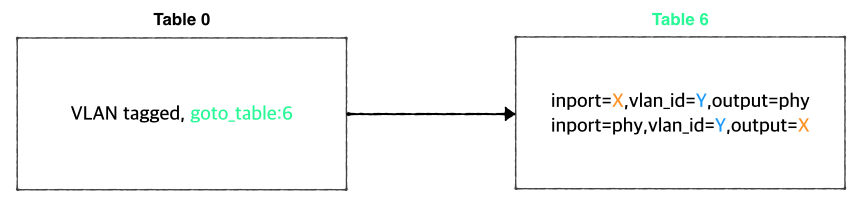
Basically, VLAN tagged packet from a VM is forwarded to the data plane without any modifications and any VLAN tagged packet from data plane is forwarded to a VM based on its VLAN ID. So, assigning the same VLAN ID to multiple VMs in the same virtual switch can break the logic. Anyway, if you want this limited VLAN feature, try the following steps.
1. Create Neutron port with port name "stag-[vid]"
| Code Block |
|---|
$ neutron port-create net-A-private --name stag-100 |
2. Create a VM with the port
| Code Block |
|---|
$ nova boot --image 6ba954df-063f-4379-9e2a-920050879918 --flavor 2 --nic port-id=2c7a397f-949e-4502-aa61-2c9cefe96c74 --user-data passwd.data vsg-01 |
3. Once the VM is up, create a VLAN interface inside the VM with the VID and assign any IP address you want to use with the VLAN. And do the same thing on the server in the underlay.
| Code Block |
|---|
$ sudo vconfig add eth0 100
$ sudo ifconfig eth0.100 10.0.0.2/24 |
Floating IP with VLAN ID 500
CORD-VTN handles VID 500 a little differently. It strips the VLAN before forwarding the packet to the data plane.
[TO DO]
Internet Access from VM (only for test)
If you want to access a VM through SSH or access the Internet from VM without fabric controller and vRouter, you need to do setup the followings in your compute node. Basically, this settings mimics fabric switch and vRouter inside a compute node, that is, "fabric" bridge corresponds to fabric switch and Linux routing tables corresponds to vRouter. You'll need at least two physical interface for this test setup.
First, you'd create a bridge named "fabric" (it doesn't have to be fabric).
| Code Block | ||
|---|---|---|
| ||
$ sudo brctl addbr fabric |
...
configuration/ -d @network-cfg.json |
If all the nodes are listed but some of them are in "INCOMPLETE" state, check what is the problem with it and fix it.
Once you fix the problem, push the network-cfg.json again to trigger init for all nodes(it is no harm to init COMPLETE state nodes again) or use "cordvtn-node-init" command.
| Code Block | ||||
|---|---|---|---|---|
| ||||
onos> cordvtn-node-check compute-01
Integration bridge created/connected : OK (br-int)
VXLAN interface created : OK
Data plane interface added : OK (eth1)
IP flushed from eth1 : OK
Data plane IP added to br-int : NO (10.134.34.222/16)
Local management IP added to br-int : NO (172.27.0.1/24)

(fix the problem if there's any)

onos> cordvtn-node-init compute-01

onos> cordvtn-node-check compute-01
Integration bridge created/connected : OK (br-int)
VXLAN interface created : OK
Data plane interface added : OK (eth1)
IP flushed from eth1 : OK
Data plane IP added to br-int : OK (10.134.34.222/16)
Local management IP added to br-int : OK (172.27.0.1/24) |
3. Make sure all virtual switches on compute nodes are added and available in ONOS.
| Code Block |
|---|
onos> devices
id=of:0000000000000001, available=true, role=MASTER, type=SWITCH, mfr=Nicira, Inc., hw=Open vSwitch, sw=2.0.2, serial=None, managementAddress=compute.01.ip.addr, protocol=OF_13, channelId=compute.01.ip.addr:39031
id=of:0000000000000002, available=true, role=STANDBY, type=SWITCH, mfr=Nicira, Inc., hw=Open vSwitch, sw=2.0.2, serial=None, managementAddress=compute.02.ip.addr, protocol=OF_13, channelId=compute.02.ip.addr:44920 |
| Note |
|---|
During the initialization process, OVSDB devices can be shown, for example ovsdb:10.241.229.42, when you list devices in your ONOS. Once it's done with node initialization, these OVSDB devices are removed and only OpenFlow devices are shown. |
Now, it's ready.
Without XOS
You can test creating service networks and service chaining manually, that is, without XOS.
1. Test VMs in a same network can talk to each other
First, create a network through OpenStack Horizon or OpenStack CLI. Network name should include one of the following five network types.
- private : network for VM to VM communication
- public : network for VM to external network communication, note that the gateway IP and MAC address of this network should be specified in "publicGateways" field in network-cfg.json
- management : network for VM to compute node communication, where the VM is running. Note that subnet for this network should be the same specified in "localManagementIp" field in network-cfg.json
| Code Block | ||||
|---|---|---|---|---|
| ||||
$ ipneutron link add veth0 type veth peer name veth1 |
Now, add veth1 and the actual physical interface, eth1 here in example, to the fabric bridge.
| Code Block | ||
|---|---|---|
| ||
$ sudo brctl addif fabric veth1
$ sudo brctl addif fabric eth1
$ sudo brctl show
bridge name bridge id       STP enabled interfaces
fabric      8000.000000000001   no      eth1
veth1 |
Set fabric bridge MAC address to the virtual gateway MAC address, which is "privateGatewayMac" in network-cfg.json.
| Code Block | ||
|---|---|---|
| ||
$ sudo ip link set address 00:00:00:00:00:01 dev fabric |
net-create net-A-private
$ neutron subnet-create net-A-private 10.0.0.0/24 |
To access VM through SSH, you may want to create SSH key first and pass the --key-name when you create a VM, or the following script as a --user-data, which sets password of "ubuntu" account to "ubuntu" so that you can login to VM through console. Anyway, creating and accessing a VM is the same with usual OpenStack usage.
| Code Block |
|---|
#cloud-config
password: ubuntu
chpasswd: { expire: False }
ssh_pwauth: True |
Now create VMs with the network you created. (don't forget to add --key-name or --user-data if you want to login to VM)
| Code Block | ||||
|---|---|---|---|---|
| ||||
$ nova boot --image f04ed5f1-3784-4f80-aee0-6bf83912c4d0 --flavor 1 --nic net-id=aaaf70a4-f2b2-488e-bffe-63654f7b8a82 net-A-vm-01 |
You can access VM through Horizon Web Console, virsh console with some tricks(https://github.com/hyunsun/documentations/wiki/Access-OpenStack-VM-through-virsh-console) or if you setup "Local Management Network" part, you can SSH to VM from a compute node where the VM is running.
Now, test VMs can ping to each other.
2. Test VMs in a different network cannot talk to each other
Create another network, for example net-B-private, and create another VM with the network. Now, test the VM cannot ping to the network net-A-private.
3. Test service chaining
Enable ip_forward in your VMsNow, add routes of your virtual network IP ranges and NAT rules.
| Code Block | ||
|---|---|---|
| ||
$ sudo route addsysctl -net 192.168.0.0/16 dev fabric $ sudo netstat -rn Kernel IP routing table Destination Gateway Genmask Flags MSS Window irtt Iface 0.0.0.0 45.55.0.1 0.0.0.0 UG 0 0 0 eth0 45.55.0.0 0.0.0.0 255.255.224.0 U 0 0 0 eth0 192.168.0.0 0.0.0.0 255.255.0.0 U 0 0 0 fabric $ sudo iptables -A FORWARD -d 192.168.0.0/16 -j ACCEPT $ sudo iptables -A FORWARD -s 192.168.0.0/16 -j ACCEPT $ sudo iptables -t nat -A POSTROUTING -o eth0 -j MASQUERADE |
You should enable ip_forward, of course.
| Code Block | ||
|---|---|---|
| ||
$ sudo sysctl net.ipv4.ip_forward=1 |
It's ready. Make sure all interfaces are activated and able to ping to the other compute nodes with "hostManagementIp".
...
| language | bash |
|---|
...
ipv4.ip_forward=1 |
Create service dependency with the following REST API.
| Code Block | ||
|---|---|---|
| ||
$ curl -X POST -u onos:rocks -H "Content-Type:application/json" http://[onos_ip]:8181/onos/cordvtn/service-dependency/[net-A-UUID]/[net-B-UUID]/b |
Now, ping from net-A-private VM to gateway IP address of net-B. There will not be a reply but if you tcpdump in net-B-private VMs, you can see one of the VMs in net-B-private gets the packets from net-A-private VM. To remove the service dependency, send another REST call with DELETE.
| Code Block |
|---|
$ curl -X DELETE -u onos:rocks -H "Content-Type:application/json" http://[onos_ip]:8181/onos/cordvtn/service-dependency/[net-A-UUID]/[net-B-UUID] |
Check the following video how service chaining works (service chaining demo starts from 42:00)
| Widget Connector | ||
|---|---|---|
|
With XOS
[TODO]
How To Test: Additional Features
Local Management Network
If you need to SSH to VM directly from compute node, just create and attach the management network to a VM. Management network name should include "management".
1. Create a management network and subnet which you specified as the "localManagementIp" in your network-cfg.json and make sure that the gateway IP of the subnet should be the same with "localManagementIp".
| Code Block | ||||
|---|---|---|---|---|
| ||||
$ neutron net-create management
$ neutron subnet-create management 172.27.0.0/24 --gateway 172.27.0.1 |
2. Create a VM with management network. I added the management network as a second interface in the following example but it is not necessarily to be a second NIC.
| Code Block | ||||
|---|---|---|---|---|
| ||||
$ nova boot --image f04ed5f1-3784-4f80-aee0-6bf83912c4d0 --flavor 1 --nic net-id=aaaf70a4-f2b2-488e-bffe-63654f7b8a82 --nic net-id=0cd5a64f-99a3-45a3-9a78-7656e9f4873a net-A-vm-01 |
All done. Now you can access the VM from the host machine. If the management network is not the primary interface, there's a possibility that the VM does not bring up the interface automatically. In that case, log in to the VM and bring up the interface manually.
| Code Block | ||||
|---|---|---|---|---|
| ||||
$ sudo dhclient eth1 |
VLAN for connectivity between VM and underlay network
You can use VLAN for the connectivity between a VM and a server in the underlay network. It's very limited but can be useful if you need a connectivity between a VM and a physical machine or any other virtual machine which is not controlled by CORD-VTN and OpenStack. R-CORD uses this feature for vSG LAN connectivity.
The figure below is the part of the CORD-VTN pipeline, which shows how VLAN tagged packet is handled.
Basically, VLAN tagged packet from a VM is forwarded to the data plane without any modifications and any VLAN tagged packet from data plane is forwarded to a VM based on its VLAN ID. So, assigning the same VLAN ID to multiple VMs in the same virtual switch can break the logic. Anyway, if you want this limited VLAN feature, try the following steps.
1. Create Neutron port with port name "stag-[vid]"
| Code Block |
|---|
$ neutron port-create net-A-private --name stag-100 |
2. Create a VM with the port
| Code Block |
|---|
$ nova boot --image 6ba954df-063f-4379-9e2a-920050879918 --flavor 2 --nic port-id=2c7a397f-949e-4502-aa61-2c9cefe96c74 --user-data passwd.data vsg-01 |
3. Once the VM is up, create a VLAN interface inside the VM with the VID and assign any IP address you want to use with the VLAN. And do the same thing on the server in the underlay.
| Code Block |
|---|
$ sudo vconfig add eth0 100
$ sudo ifconfig eth0.100 10.0.0.2/24 |
Floating IP with VLAN ID 500
CORD-VTN handles VID 500 a little differently. It strips the VLAN before forwarding the packet to the data plane.
[TO DO]
REST APIs
Here's the list of REST APIs that CORD-VTN provides.
...